Pronti - AI Outfit Maker
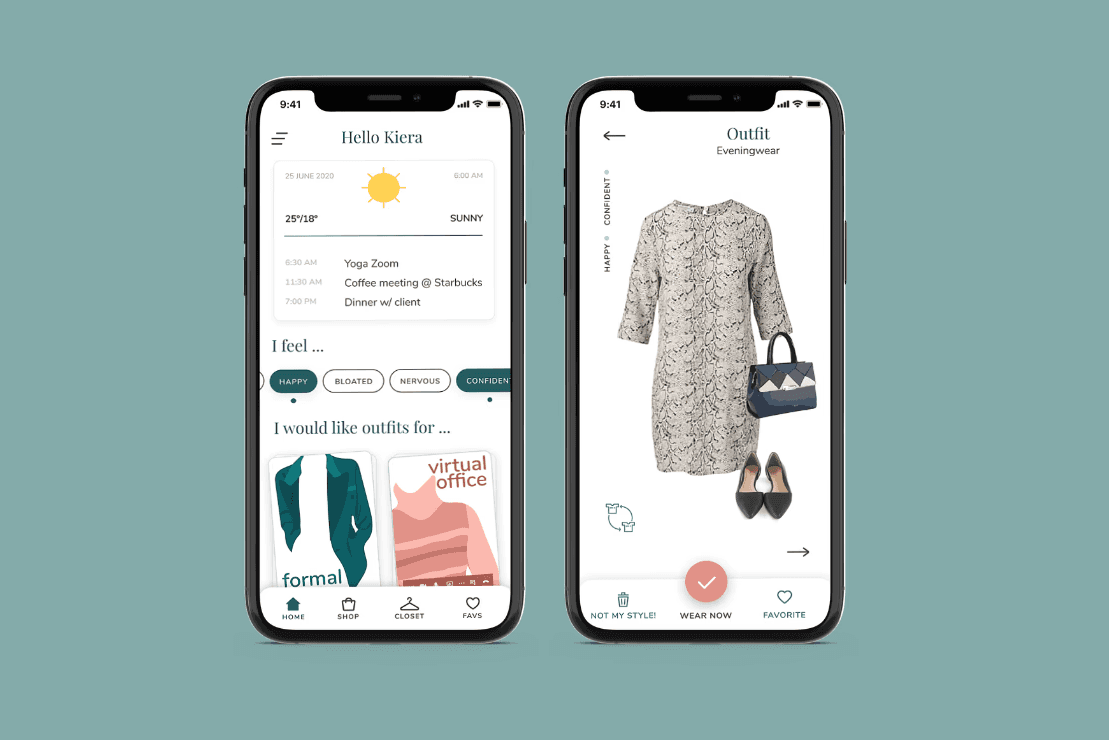
A wardrobe-assistant mobile app that helps users decide what to wear every day using AI and machine learning.
Overview
I worked at Pronti.ai Inc. for 9 months on designing the UI and interaction of their iOS and Android app, Pronti. Pronti.ai is a startup company that helps giving people suggestions on what to wear in their everyday lives based on their closet items, choices, and mood, using an AI-based virtual wardrobe assistant app.
In this project, due to confidentiality agreements, I can't include all the UX processes in detail, but I can definitely summarize some of them and share some interesting interaction design processes and thoughts behind my design.
Role
UI/UX Designer
Timeline
Jun 2020 - Feb 2021
Team
Supervisor, Engineers, User Researcher, UI/UX Designer (me)
The Problem
Many people are having difficulties choosing what to wear and how to style their outfits every day, especially in different occasions, events, or moments, even if they might have many clothes already, and this kind of difficulty brings them a very frustrating and inefficient experience.
Goal
Help users style their outfits using their own clothes in different occasions, and reduce their frustration and time spent on choosing their everyday outfits.
Information Architecture
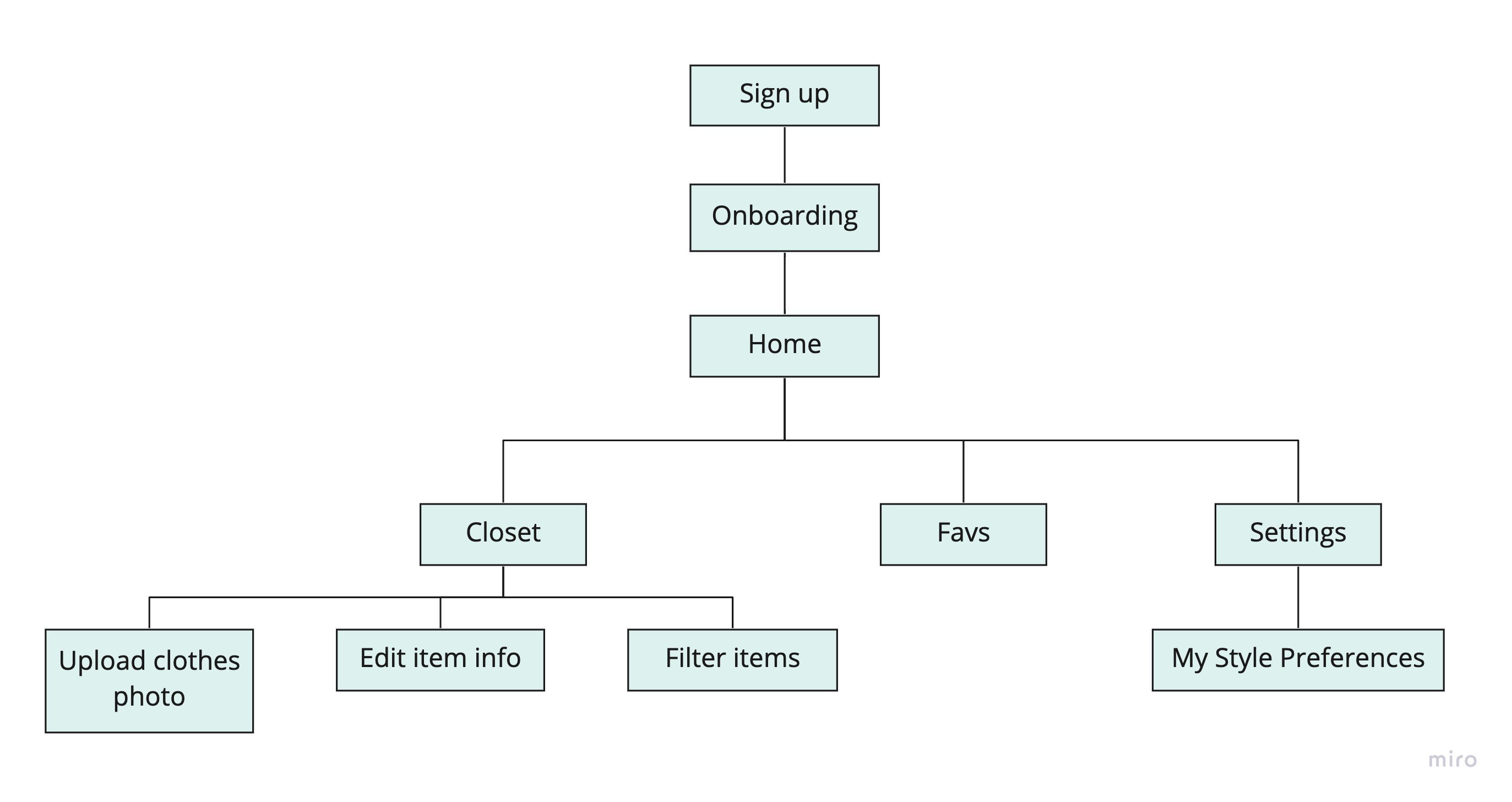
After research, I created a simple flow that indicates what to include for the MVP, reflecting the pages and features we would need to accomplish these tasks.
We want Pronti to personalizes users' everyday outfit choices, so we figured that taking pictures of clothing items and upload to closet collection should be one of the main features. Since we want to know our users the best we can, the App should also learn users' style and inspires them with outfit options based on their closet items, mood, weather and the occasion that they are dressing for.
IA for MVP:
Design
The major work that I did at Pronti was interaction design of the mobile screens, and I always like to provide designs with different patterns and navigations for one feature and compare them for pros and cons, and even perform A/B testings afterwards. Below, I will dive into the comparisons from some of the UIs that I designed.
1. Filter Closet Items
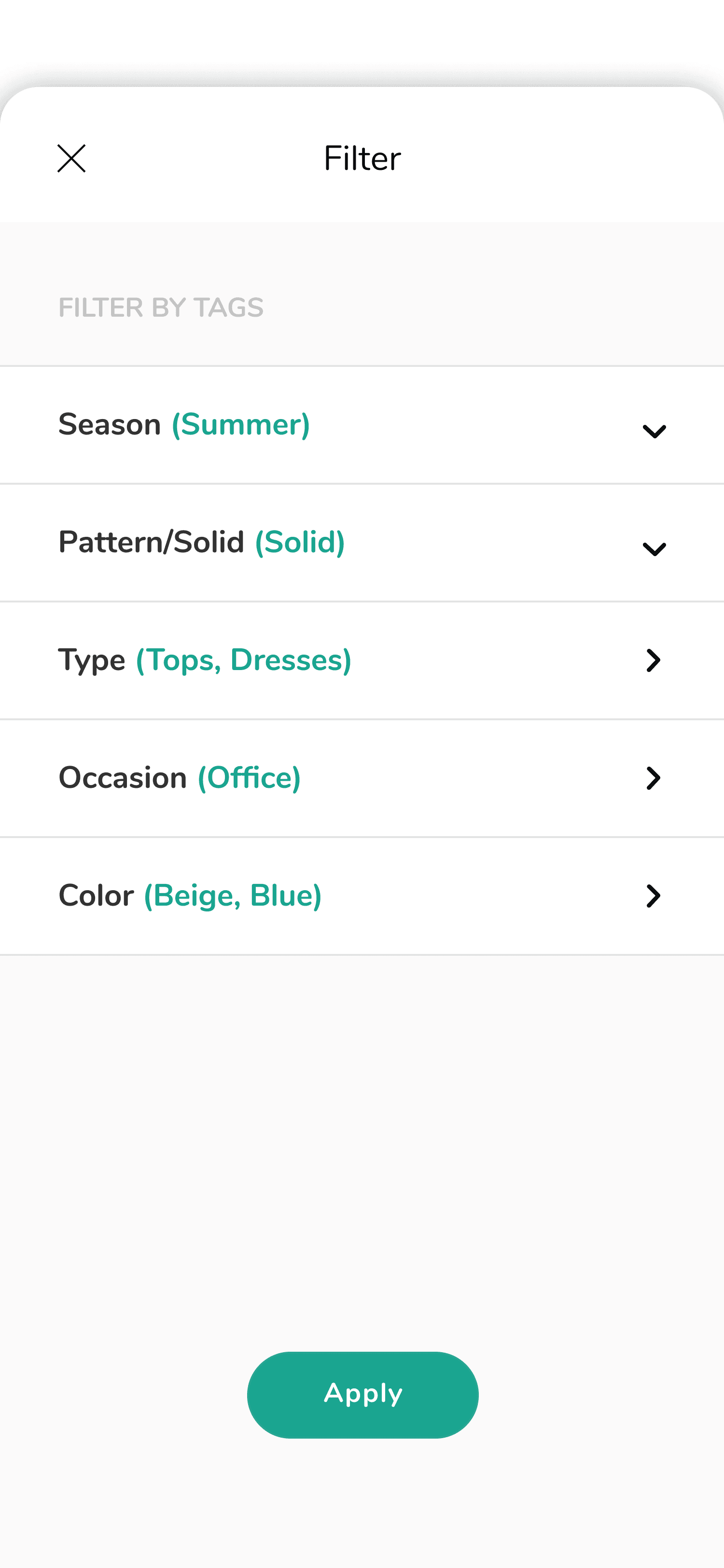
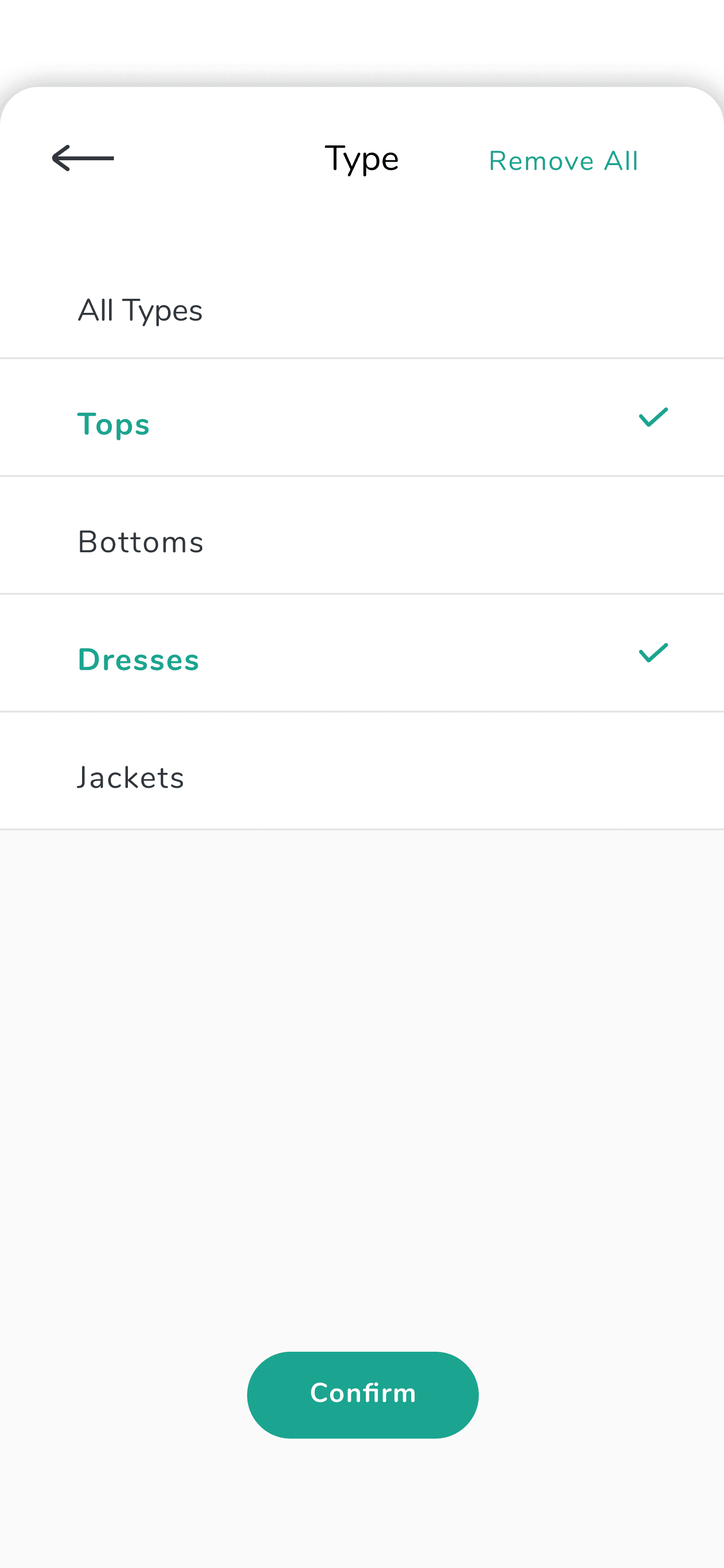
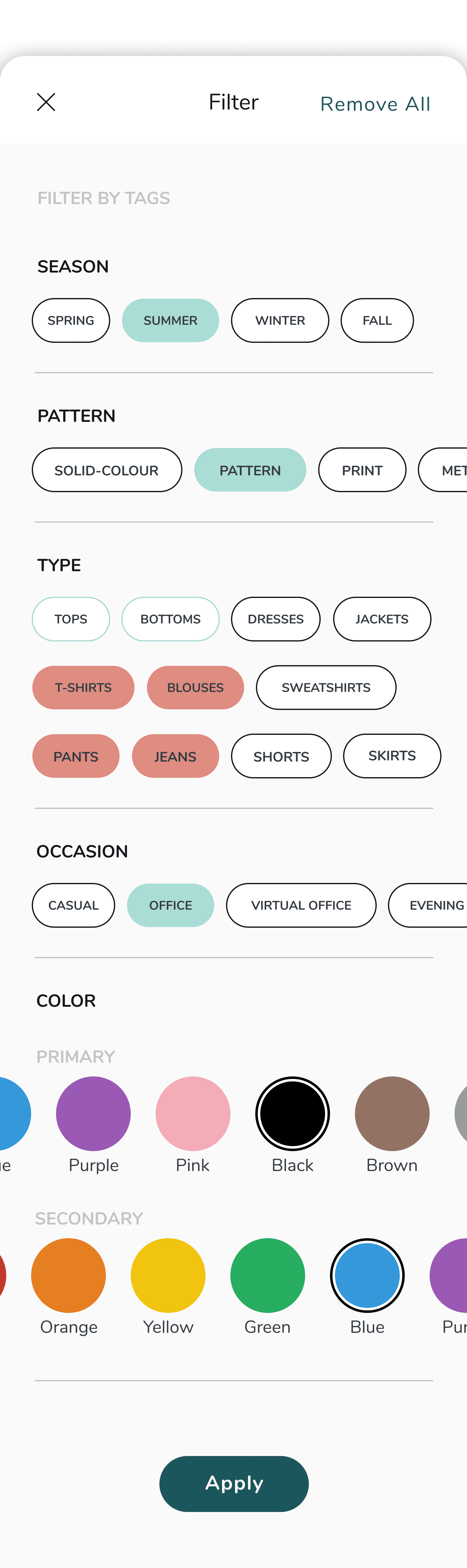
Each closet item has a number of tags about their type, color, etc., and this filter feature in the Closet page allows users to filter their closet items by their tags based on certain occasions, clothes types and colors, etc. More specifically, for Type, users have to first select the category (tops, bottoms, etc. ) and then the subcategory (t-shirts, pants, etc.). The Color tag includes primary and secondary colors, so users can select two colors in total to filter the items.
Design A: Accordions
Design B: Continuous Scrolling
Design Comparison
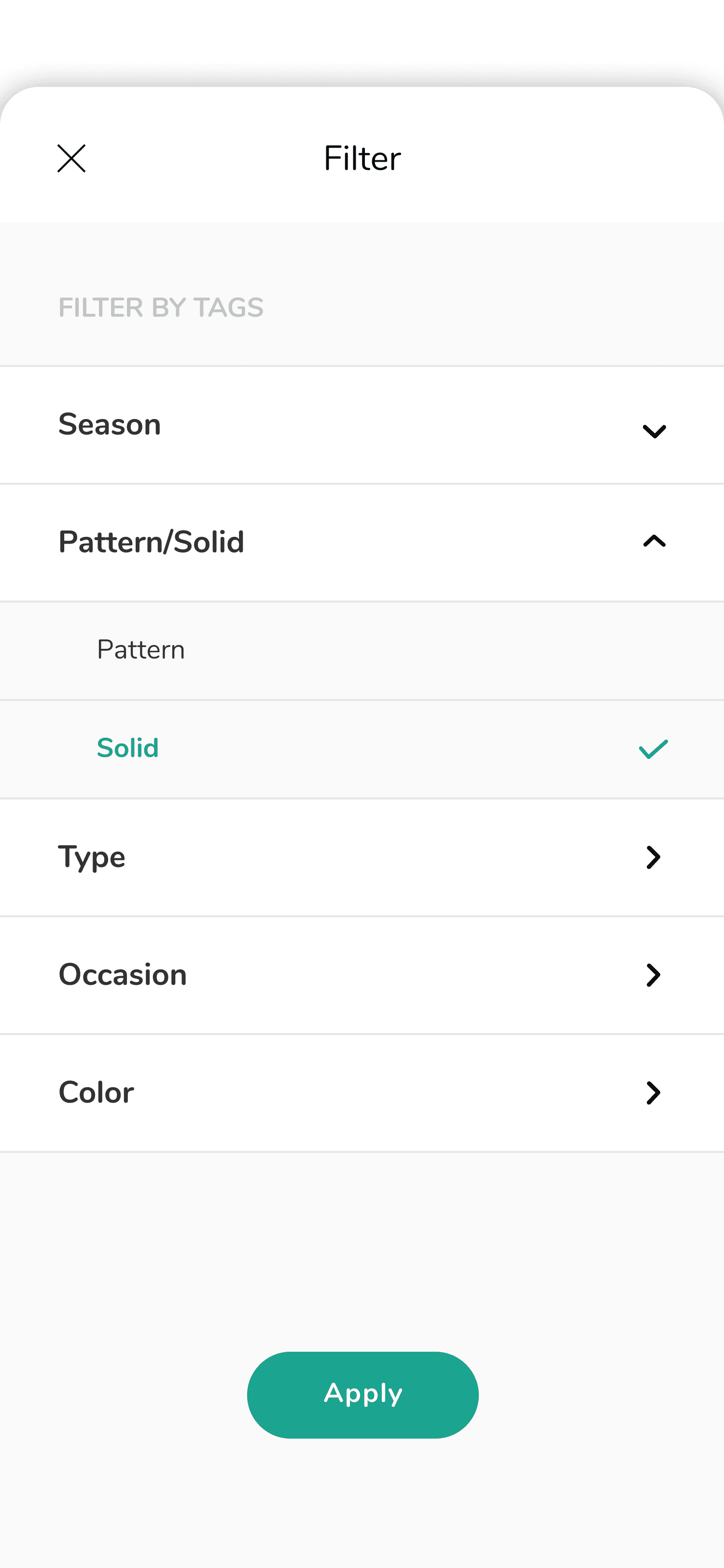
Design A (Accordions): The accordions in this design display all the filter tags clearly at once, and user can tab on each tag to select filter options by either expanding the accordion downwards or going one layer under, depending on how many options each tag has. The advantage of this design is that users can immediately see all the tags and choose the one they want to filter by without being overwhelmed with all the options under the tags.
Design B (Continuous Scrolling): For this continuous scrolling design, all the filter options under each tag are displayed on the same page, and for tags that contains more filter options, user can scroll to the right to brose the rest of them instead of going to another page. Since all the contents are fully expanded, users can select filter options without navigating to another page, and just have to keep scrolling to the end to see everything.
Design Decision
I used Design B in the end, because the main point is that for Design A, the filters have more contents to show (including the options when they get expanded) than what would fit on a normal page, so users have to navigate to a second layer to view some of the filter options (more specifically, the “type”, “occasion” and “color” tags, since they all have multiple layers), and this interaction may take away too much attention from the original content. Moreover, since “type” and “color” both have three layers, Design A would make the interaction more frustrating; whereas for Design B, expanding and displaying almost everything is particularly useful because users can make selections instantly without navigating to different pages.
2. Edit Color
For each clothes item from the Closet page, users can edit their item info, including colors.
Design A: Lists
Design B: Horizontal Scrolling Buttons
Design Comparison
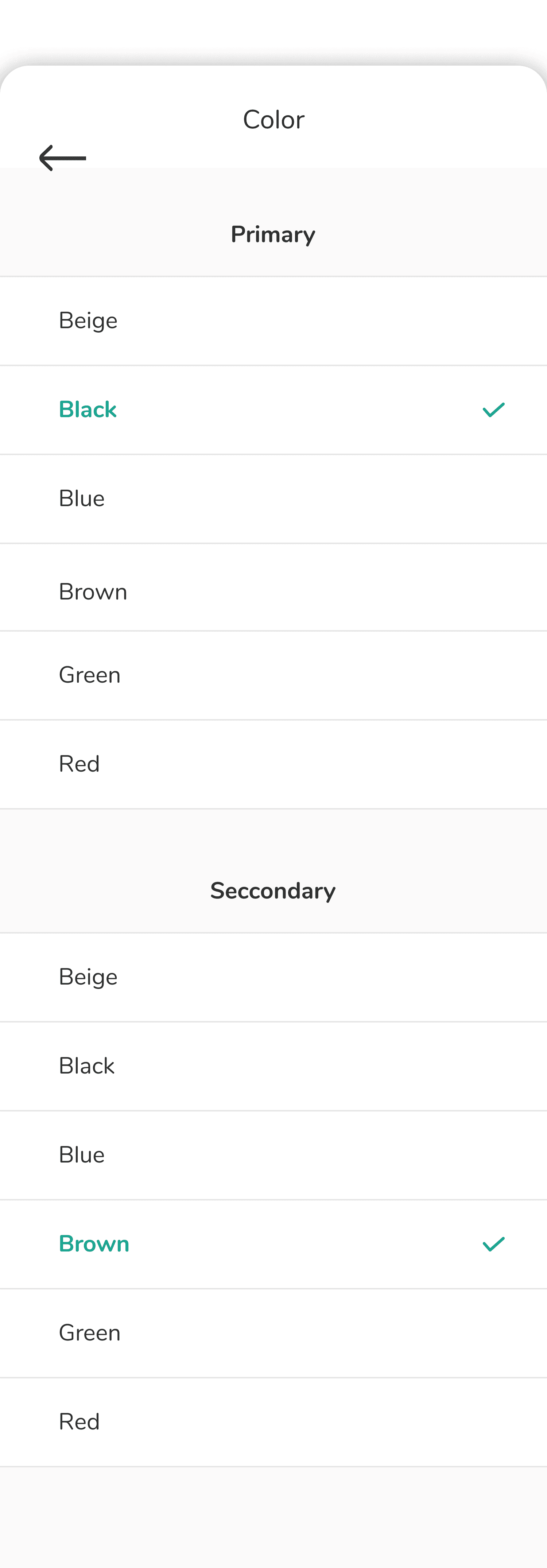
Design A (Lists): This design lists out all the options for both primary and secondary colors and displays the currently selected colors with checkmarks. Users can tap on another item to from the list to change the colors. The page automatically saves all the changes, and users just tap on the back button to go back to the clothes item page.
Design B (Horizontal Scrolling Buttons): This design displays the currently selected primary and secondary colors with the actual colors. To make changes, users first select a color family from the horizontally displayed buttons, then all the specific colors under this color family will appear, and users then tap on one of them to finish the change. The “color selected” section will also be updated accordingly.
Design Decision
I used Design B in the end. Design A is great because it has low interaction cost - users don’t need to click on anything to see all the color options before making a selection, but only have to scroll sometimes if they want to browse the full color list. However, in this “edit color” situation, Design A has some problems that it can’t solve, while Design B can:
1) users may not be able to see both selected colors simultaneously, since the list can be too long for all the color options to be visible in the viewable area. But Design B can make up for this disadvantage because it shows the selected colors at the top of each section;
2) users can only select a color family, but not a specific color under the family. Design B allows users to select colors from a more detailed and accurate collection.
Final UI & Interactions
3. My Style Preferences
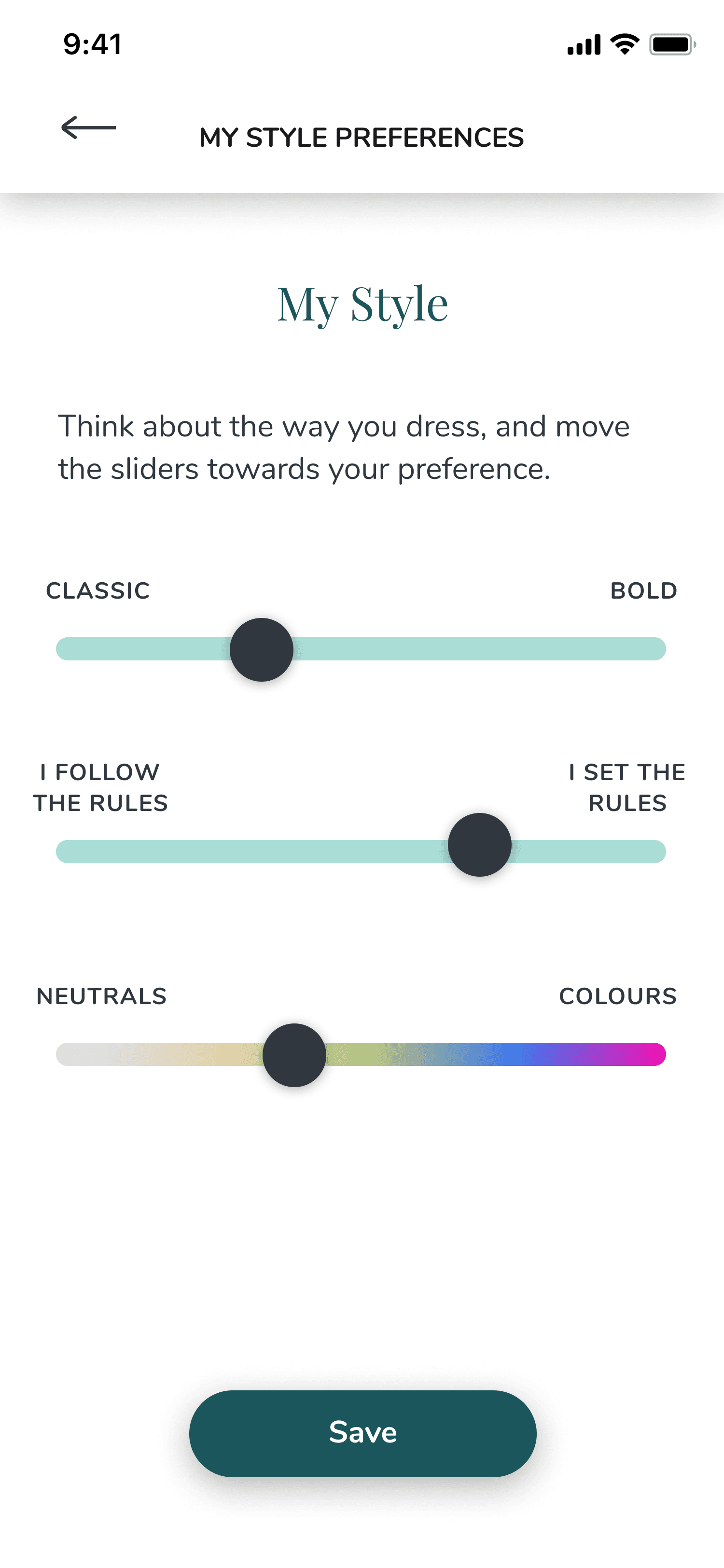
Inside the side menu, there is a “My Style Preferences” section where users can set or reset their preferences about their clothing styles, colors and some other details, and the app learns about those preferences and recommends outfits based on them.
Design A: Tabs
Design B: Accordions
Design Comparison
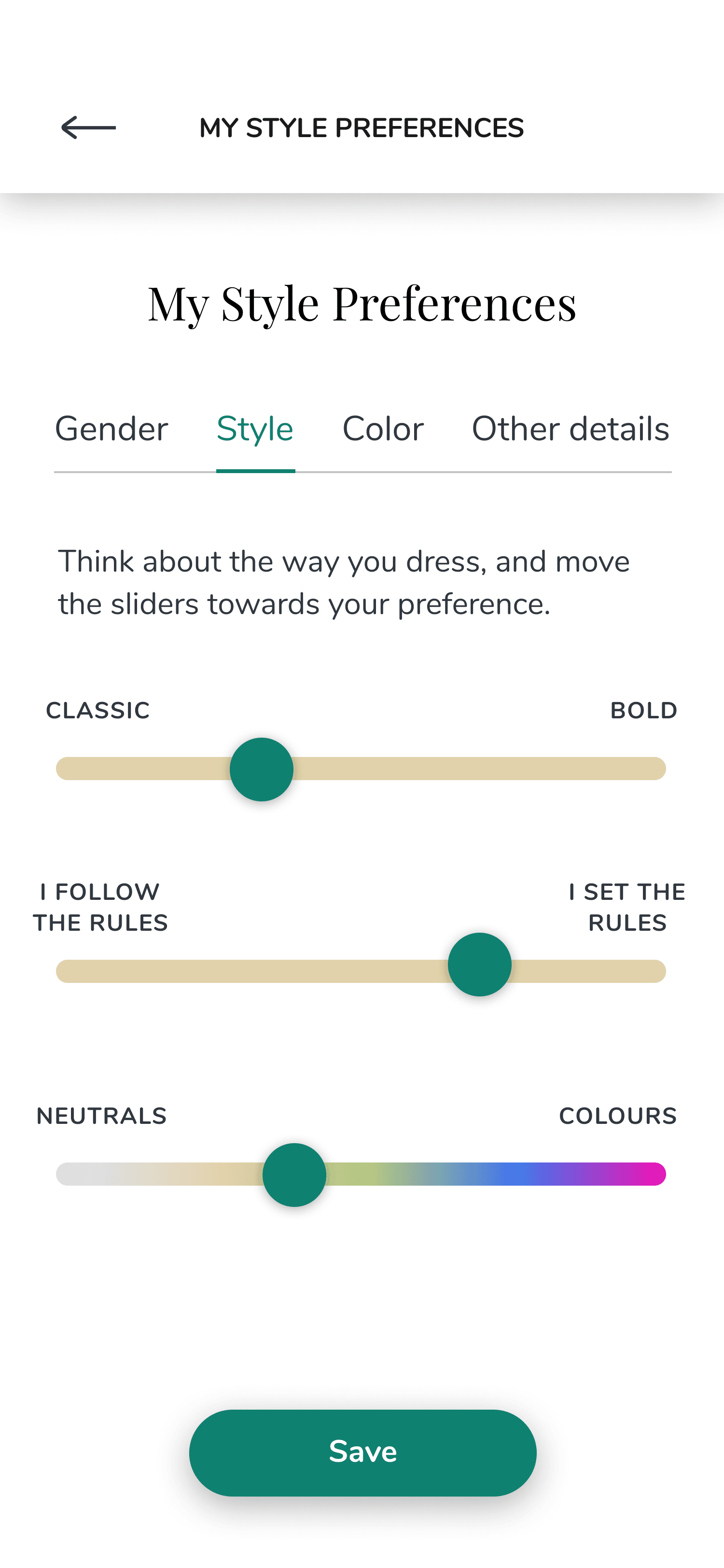
Design A (Tabs): This design categorizes all the preferences into four tabs, and once tapped on, the relevant preference settings will be shown below.
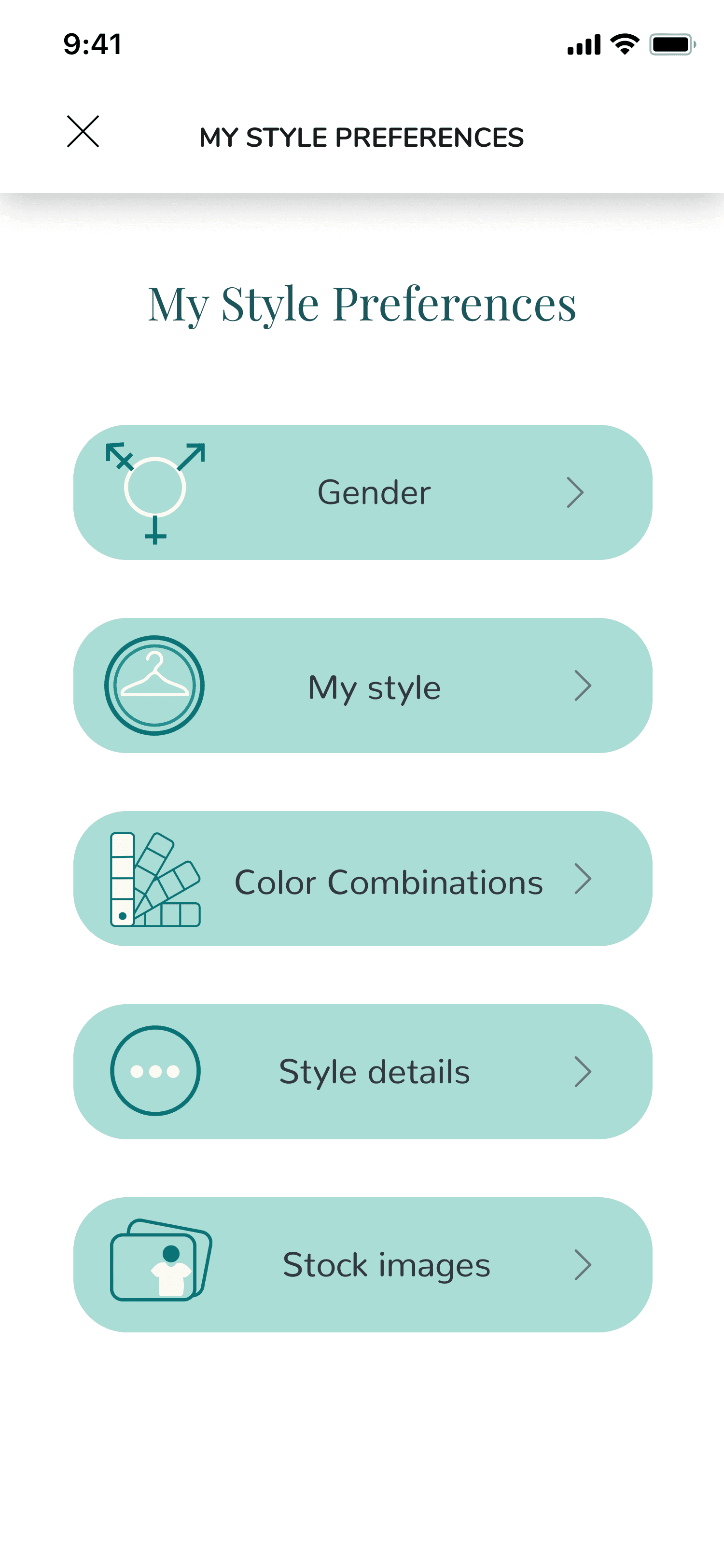
Design B (Accordions): This design categorizes all the preferences into accordions, and once tapped on, users will be taken one layer down to the specific preference settings. Once saved the changes, they will be taken back to the accordion page.
Design Decision
I used Design B in the end, mainly because accordions are displayed vertically and tabs are displayed horizontally. Design A is great specifically for contents that have fewer tabs, shorter tab names, and simpler preference contents, because otherwise there won’t be enough space to display all the tabs horizontally, and same for the contents of the preferences—since the tabs take away some space at the top, if the preferences are contents heavy, then most likely users would have to scroll down.
For Design B, since the preferences are displayed vertically, the design gives the chance and the space for a possibility of more accordions to be added later on. Also, the inner contents are displayed in a full screen rather than sharing the same screen as the accordions.
Final UI & Interactions
Product Impact
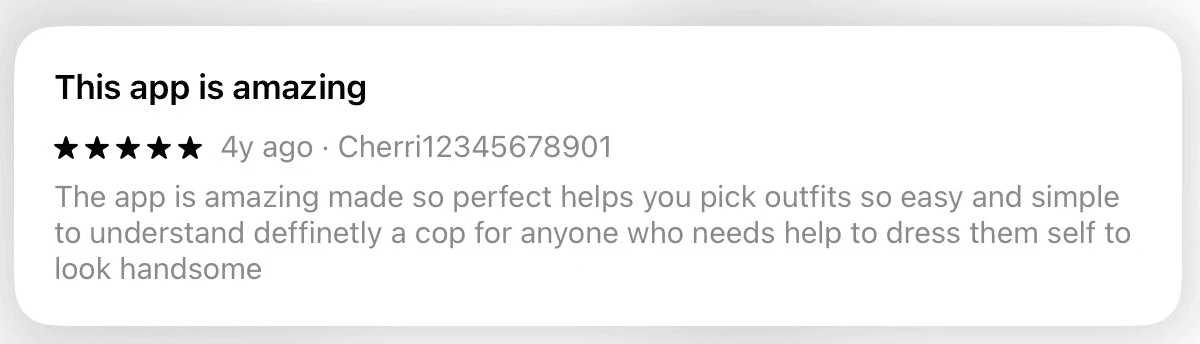
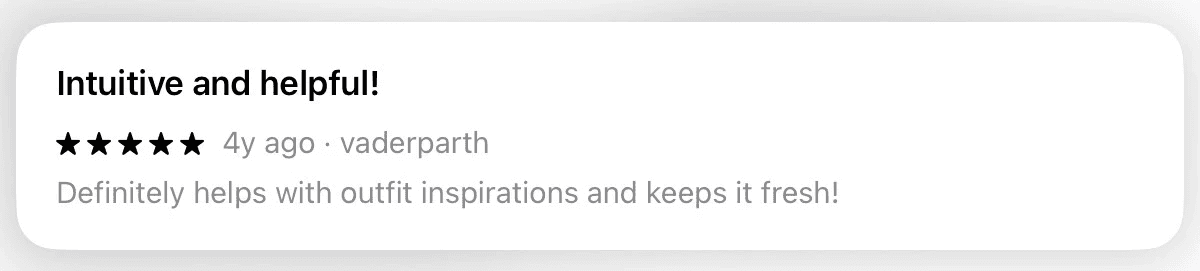
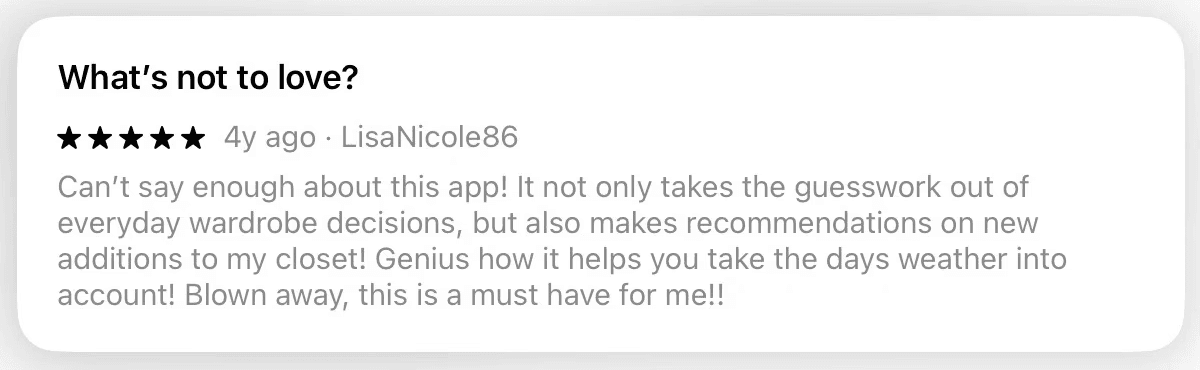
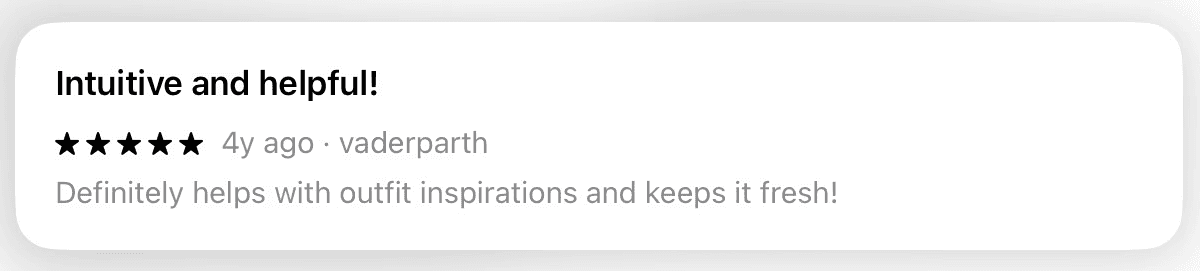
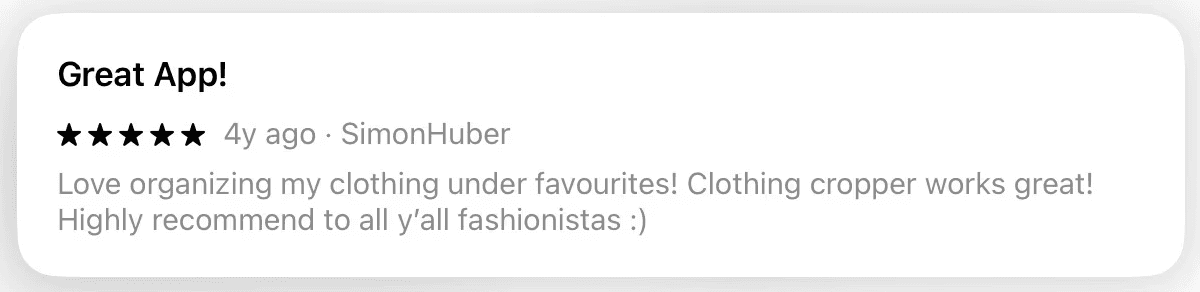
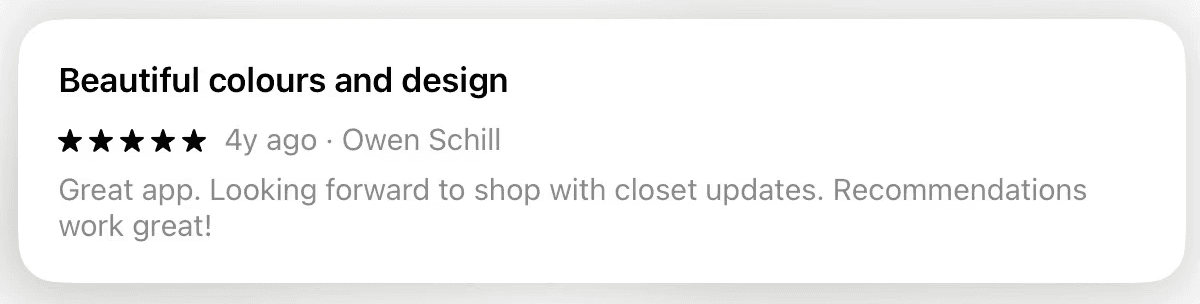
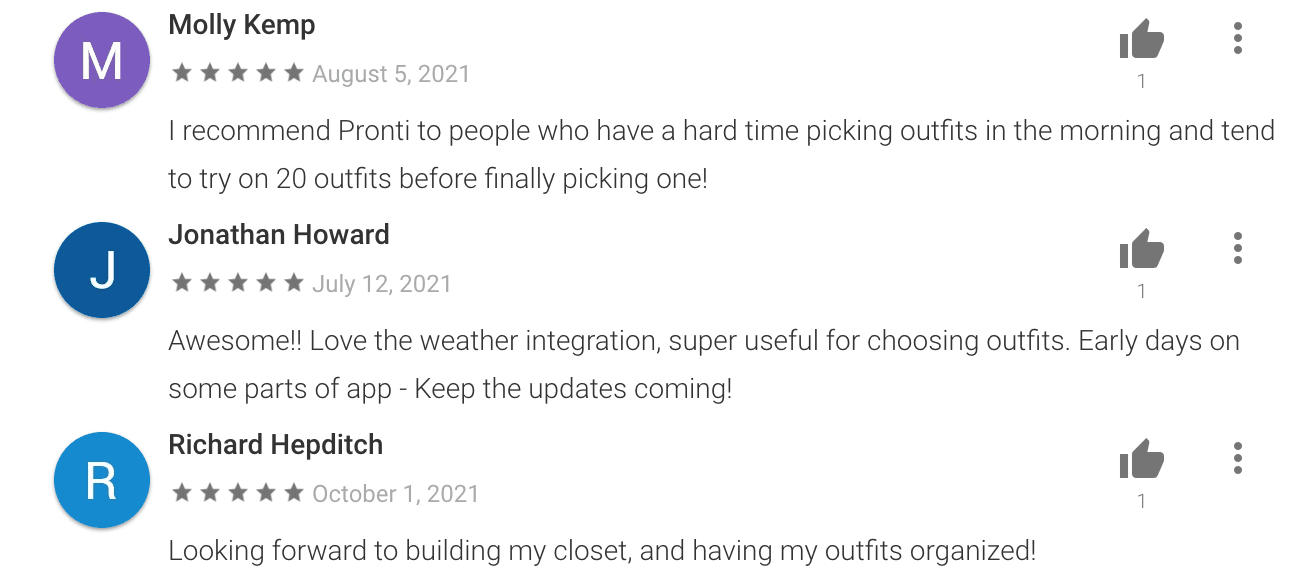
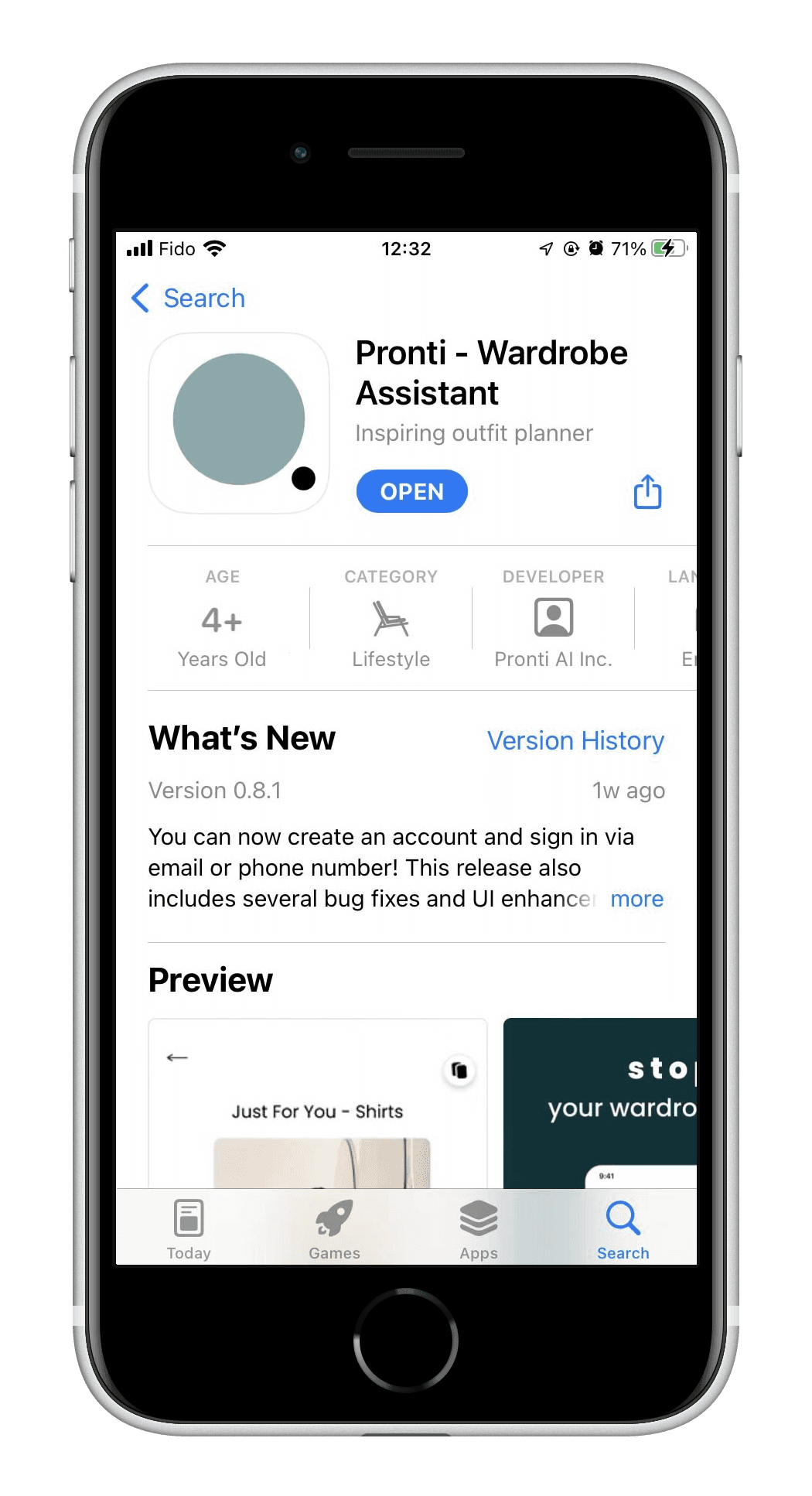
We officially launched the Pronti app on both App Store and Google Play on March 31st, 2021, and haven gotten overwhelmingly positive feedback.
From App Store:
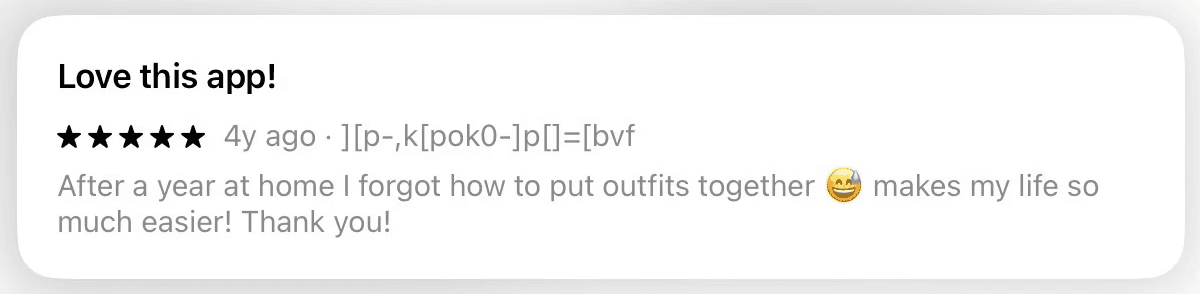
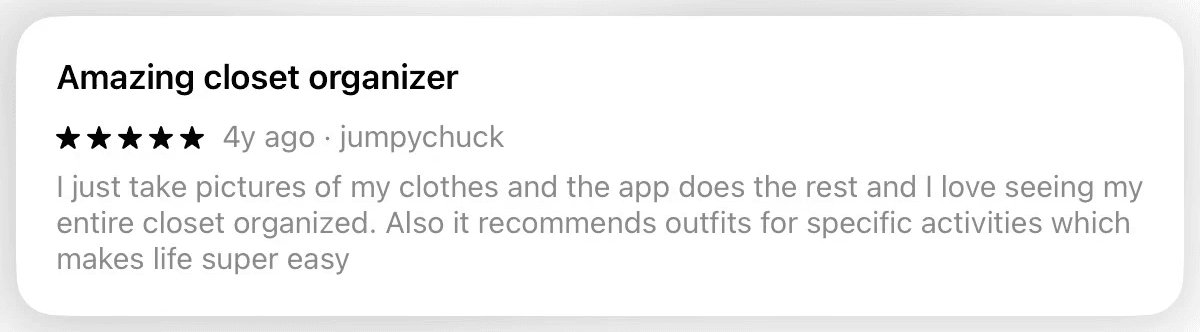
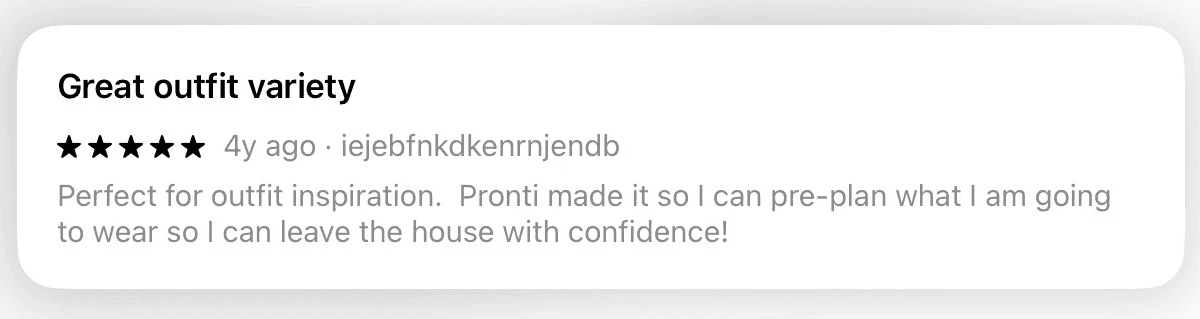
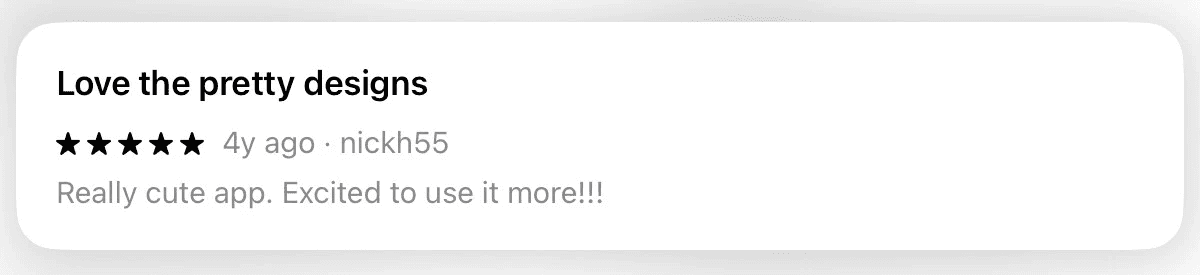
From Google Play:
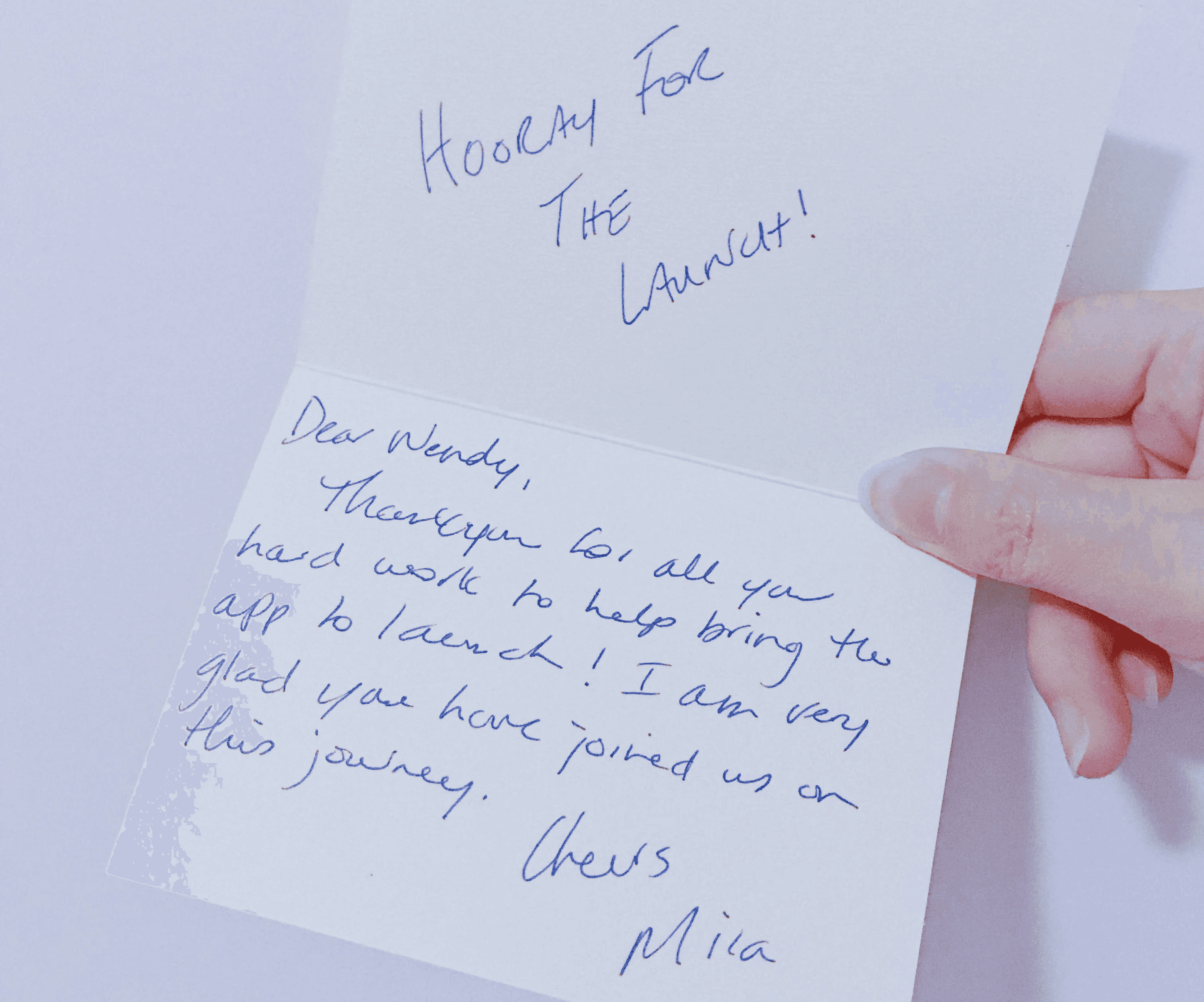
…and I got a warm handwritten thank you card from the CEO :)
Learnings & Future Work
In this project, I had the opportunity to design the UI in both iOS and Android, so I’ve learned a lot about the differences in the two systems as well as how I should change my design in order to fit in a different system. In addition, this project has also given me an amazing experience working with engineers, learning about their angle of thinking for the designs and their thoughts about how my designs work with their implementations.
Since Pronti was still at its early stages, some UX design steps had to be simplified. If given sufficient time and budget, I would do more user testing and A/B testing to our target audience for my designs, so that our products would get a chance to further improve the user experience and solve our users’ problems in a more targeted way.